

What you get
When you connect QuickBooks Online, Go Fig:- Syncs raw data from QuickBooks into tables: transactions, master data, and budgets
- Builds derived reports: P&L, balance sheet, AR/AP aging, cash flow, and more
- Exposes MCP tools so AI agents like Claude for Excel can read and write directly to QuickBooks
Connect QuickBooks
1
Start the connection
Open the Data page, click Add data source, and select QuickBooks Online.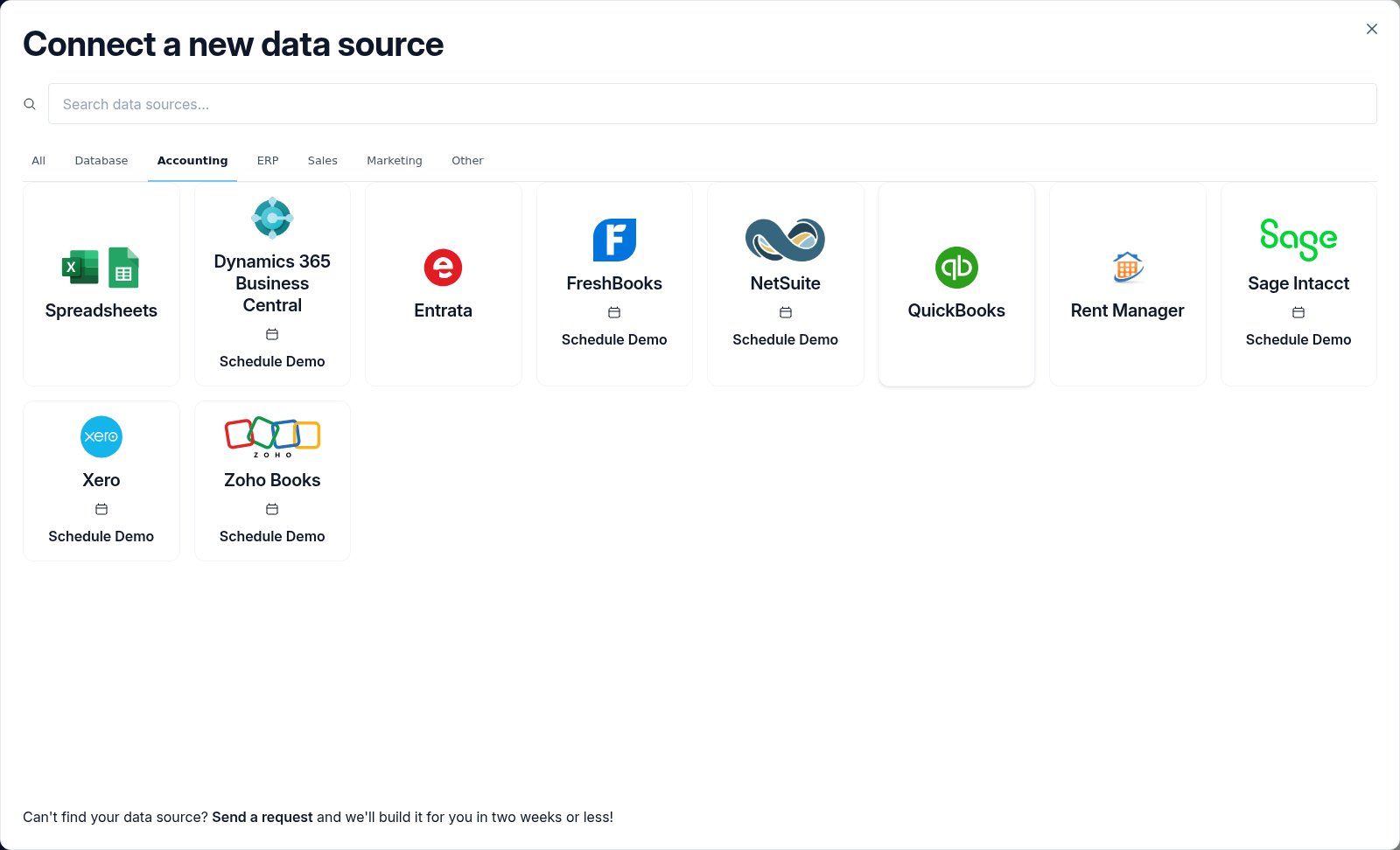
2
Authorize Go Fig
A QuickBooks login window opens. Sign in and select the company file you want to connect.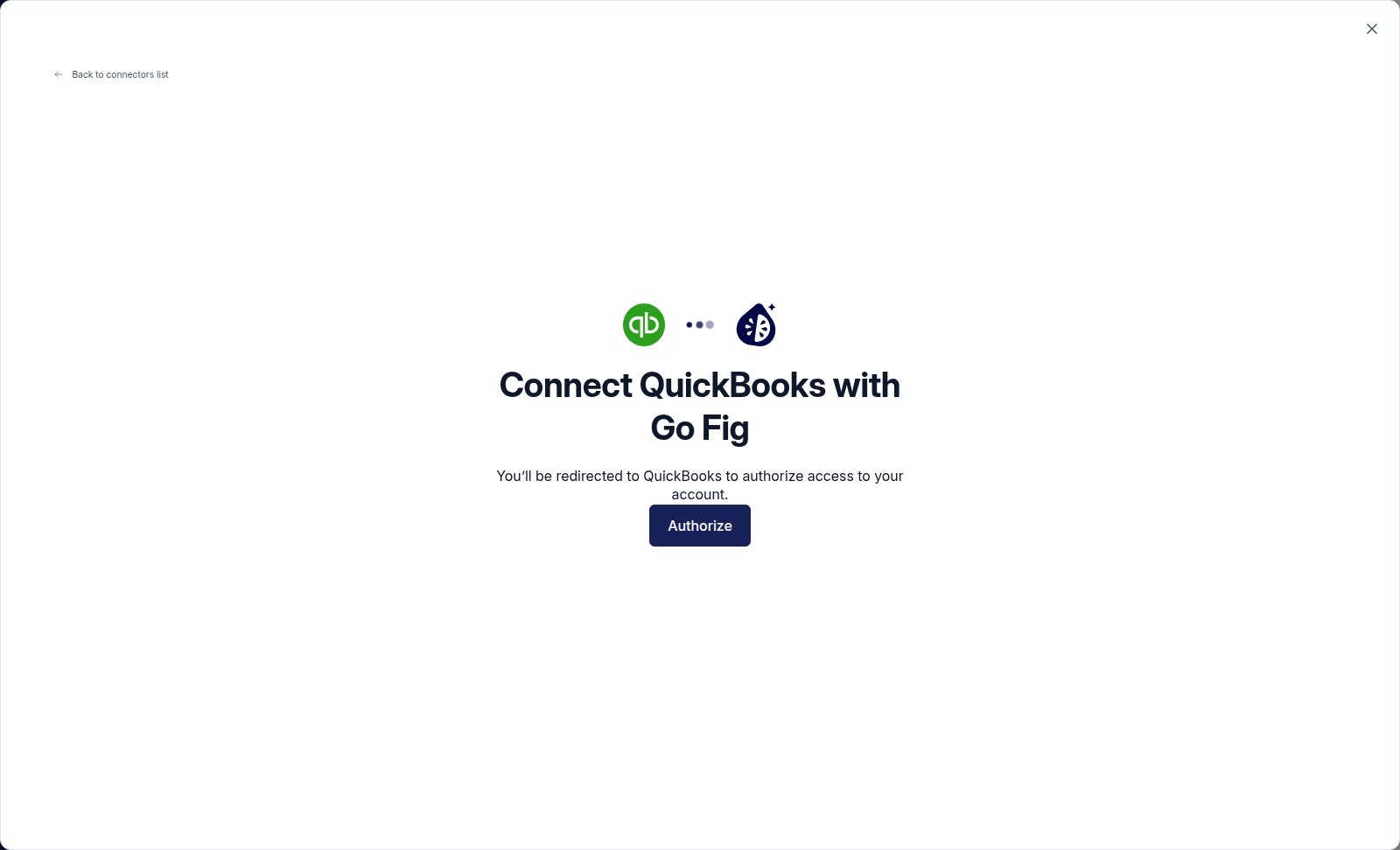
3
Wait for the first sync
The initial sync pulls historical data (up to 100 years, subject to your Go Fig plan). Depending on the size of your company, this typically takes a few minutes to a few hours.
4
(Optional) Enable MCP
If you want AI agents to access or write to QuickBooks through Go Fig, turn on MCP access on this connector and your org-level MCP settings.
Supported streams
Go Fig syncs the following QuickBooks tables. Each row in these tables matches a QuickBooks entity.Transactional data
Windowed full refresh. Records deleted or voided in QuickBooks are automatically removed from Go Fig (within the 100-day rolling window).Master data
Full refresh. Complete reference list, refreshed every sync.Append-only
Cursor-based incremental sync.Derived reports
On top of the raw streams, Go Fig builds pre-calculated financial report tables you can use in Flows, Boards, and through MCP:
These are built automatically after each sync and are what AI agents should use for most reporting questions, since they’re faster and more reliable than asking QuickBooks to compute reports on the fly.
MCP operations
With MCP access turned on for this connector, AI agents can perform the following operations directly against your QuickBooks company. Reads are available anytime MCP is on. Writes also require organization-level AI Write-Back to be enabled.QuickBooks Online does not allow hard-delete of master data (customers, vendors, items, employees, accounts). Go Fig exposes a deactivate operation instead, which marks the record inactive. Transactional entities support true deletion.
accounting_batch to execute up to 30 mixed create/update/delete operations in a single request, ideal for bulk imports from Excel.
Example prompts
Try these in Claude for Excel, ChatGPT, Gemini, or any connected MCP agent:- “List the 10 most recent invoices.”
- “Show me AR aging by customer.”
- “Create a journal entry dated today: 1,200 credit to Checking.”
- “For each row in this sheet, create a bill in QuickBooks.”
- “Deactivate the customer named ‘Old Client Inc.’”
- “Pull YTD revenue grouped by customer.”
Safety model
- Every write is confirmed. AI agents preview the operation before posting. Nothing is written to QuickBooks without your explicit approval.
- Stale-data protection. Updates use QuickBooks’ SyncToken for optimistic concurrency. If a record changed between the read and the write, the update fails rather than silently overwriting.
- Full audit trail. Every MCP write is logged with user, timestamp, parameters, and result. Available in the organization’s permission audit log.
Troubleshooting
My QuickBooks data looks stale
My QuickBooks data looks stale
Ask an agent to “Refresh my QuickBooks data”, or trigger a sync manually from the connector settings. If the data is still stale, check the connector’s health badge on the Data page.
Writes fail with 'authentication expired'
Writes fail with 'authentication expired'
Your QuickBooks OAuth tokens have expired. Open the QuickBooks connector in Go Fig and click Reauthenticate. Once reconnected, MCP writes resume immediately.
An agent can't write to QuickBooks
An agent can't write to QuickBooks
Write operations require three settings to be enabled: organization MCP access, organization AI Write-Back, and MCP Access on this connector.
A report looks wrong
A report looks wrong
Go Fig’s derived reports (P&L, balance sheet, cash flow) reflect what’s in QuickBooks at sync time. If numbers don’t match QuickBooks, first confirm the data is fresh then check your Accounting Basis setting in Organization Settings. This determines accrual vs. cash P&L.