

Guide to Connect Amazon S3:
- Gather your bucket name and AWS region.
- For private buckets: create a read-only IAM user and generate an access key pair.
- (Optional) Identify a path prefix to scope discovery to a subfolder.
What Go Fig supports
- File formats: CSV, TSV, Parquet, JSON (auto-detected per file from the extension)
- Compression:
.gz,.zst,.bz2(transparently decompressed) - Bucket types: public (no credentials) and private (IAM access key)
- Folder structure: top-level prefixes become collections in Go Fig and files at any depth become tables. Same-named files in different subfolders stay distinct (disambiguated by their path)
- Query engine: Go Fig queries S3 files in place via DuckDB with no copies and no re-import. Schema is discovered on connect and refreshed automatically
You don’t pick a file format when connecting. Go Fig auto-detects each file individually so a single bucket can hold mixed formats (e.g., Parquet for large data, CSV for reference tables).
1) Creating an IAM User (private buckets)
Skip this section if you’re connecting a public bucket. Leave the access key fields blank in step 3. For private buckets, create a dedicated IAM user with read-only access to the specific bucket:1
Open the IAM console
In the AWS Console, open IAM → Users.
2
Create user
Click Create user.
- User name:
gofig-s3-reader - Access type: Programmatic access (access keys)
3
Attach read-only bucket policy
Create and attach an inline policy that grants read access only to the bucket you’re connecting:Replace
YOUR-BUCKET-NAME with your bucket. If you want to scope access to a subfolder, change /* to /your-prefix/*.4
Generate access keys
After creating the user, go to Security credentials → Create access key → Application running outside AWS. AWS displays the Access Key ID and Secret Access Key once so copy both.
2) (Optional) Restricted-Permission Buckets
If the bucket owner doesn’t want to grants3:ListBucket, Go Fig supports a fallback flow: after the initial connection, you’ll be prompted for an explicit list of file paths. Each path is validated via s3:GetObject only (no listing required).
This is useful when:
- You’re consuming a partner’s bucket with tightly scoped permissions
- You only care about a specific set of files out of a very large bucket
3) Connect Go Fig to S3
1
Add S3 connection
On your Organization Data page, click Add data source and select Amazon S3.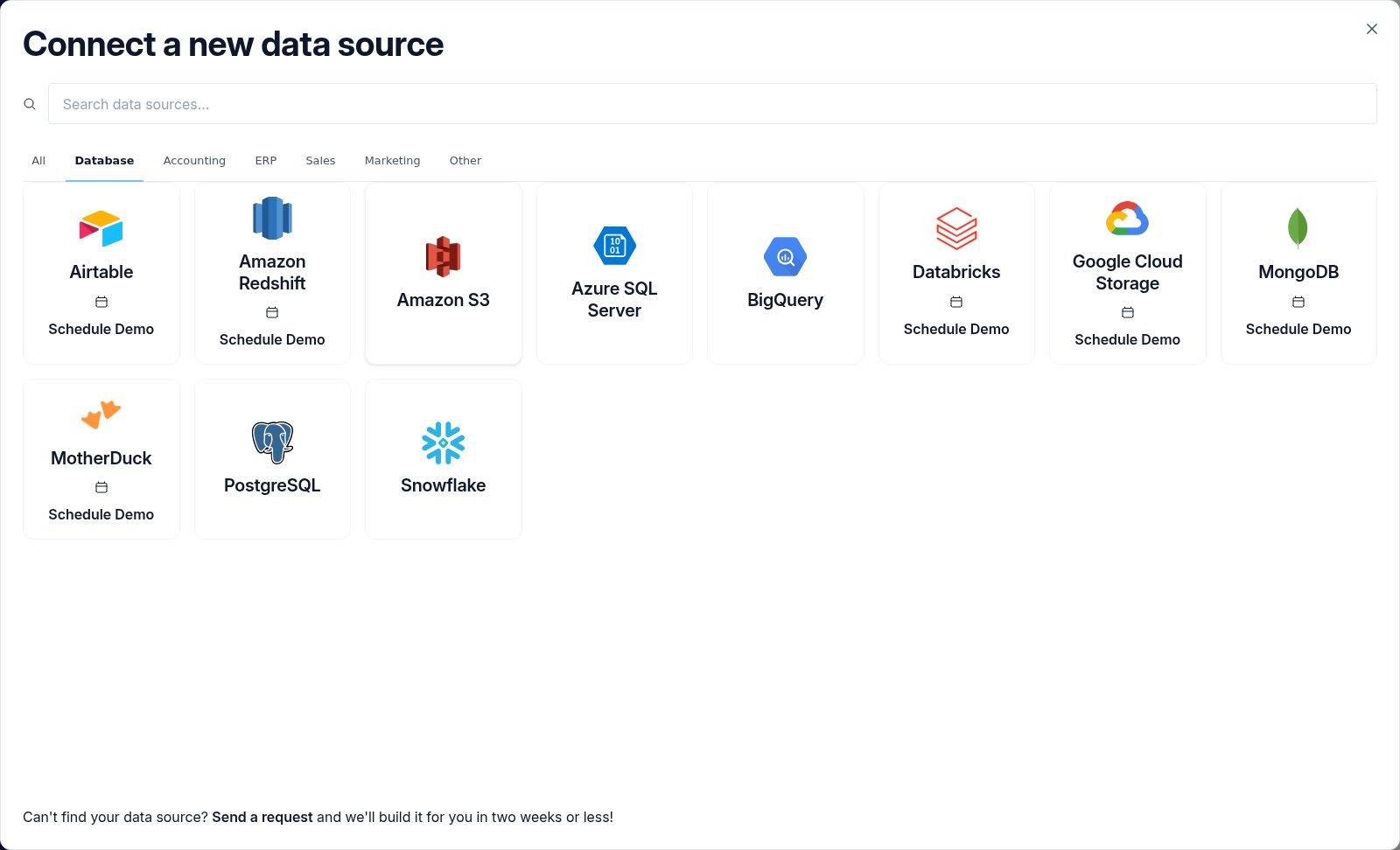
2
Enter connection details
Fill in your S3 connection information: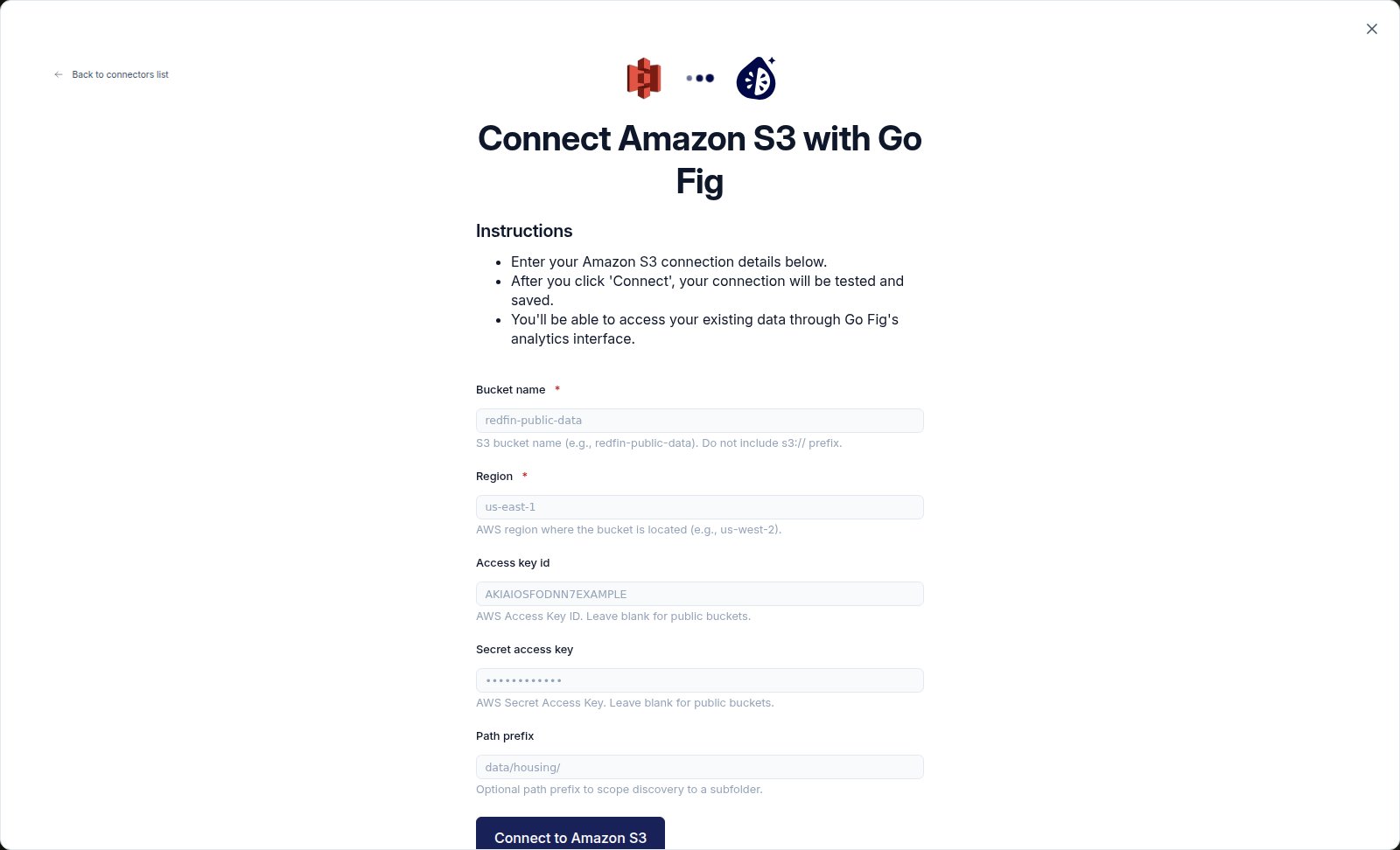
- Bucket name: the name of your S3 bucket (e.g.,
redfin-public-data). Do not includes3://. - Region: the AWS region where the bucket lives (e.g.,
us-east-1,us-west-2,eu-central-1). - Access Key ID: your IAM user’s access key. Leave blank for public buckets.
- Secret Access Key: your IAM user’s secret. Leave blank for public buckets.
- Path prefix (optional): scope discovery to a subfolder (e.g.,
data/housing/). Leave blank to discover the entire bucket.
3
Connect
Click Connect. Go Fig tests the connection, discovers folders and files, encrypts and stores your credentials.
If the bucket restricts
s3:ListBucket, Go Fig will ask you to paste an explicit allowlist of file paths on the next step (one per line, relative to the bucket root or path prefix).4
Browse your data
Once connected, Go Fig creates a collection per top-level folder and a table for every supported file. Start exploring from the Data page, or use the data in Flows, Boards, and AI agents.
How files map to Go Fig
Go Fig discovers files recursively and organizes them by folder structure:- Top-level folders (
sales,marketing) become collections - Files at any depth become tables, and the original filename is preserved
- Same-named files in different subfolders stay separate (the subfolder path is shown in the table selector)
- Files at the bucket root go into a
defaultcollection