

Overview
Publishing makes your dashboards and flows visible to everyone on your team via Team Pages, a central hub where team members can discover and access shared resources. Key Concepts:- Team Pages: Central directory of all published team content
- Broad Visibility: Published content available to all team members (not just specific users)
- Read-Only Access: Team members can view but not edit (unless they also have project access)
- Auto-Discovery: Published content appears in team directories, search results, and recommendations
Comparing Sharing Options
How to Publish
Publishing a Dashboard
1
Open dashboard
Navigate to the dashboard you want to publish. You must be the project creator or have publishing permissions.
2
Click Publish
Click Publish button in top-right toolbar, or ”•••” → “Publish to Team Page”.
3
Select Team(s)
Select one or more teams to publish the flow or dashboard to. Click “Publish” and the analysis will immediately appear for all team members.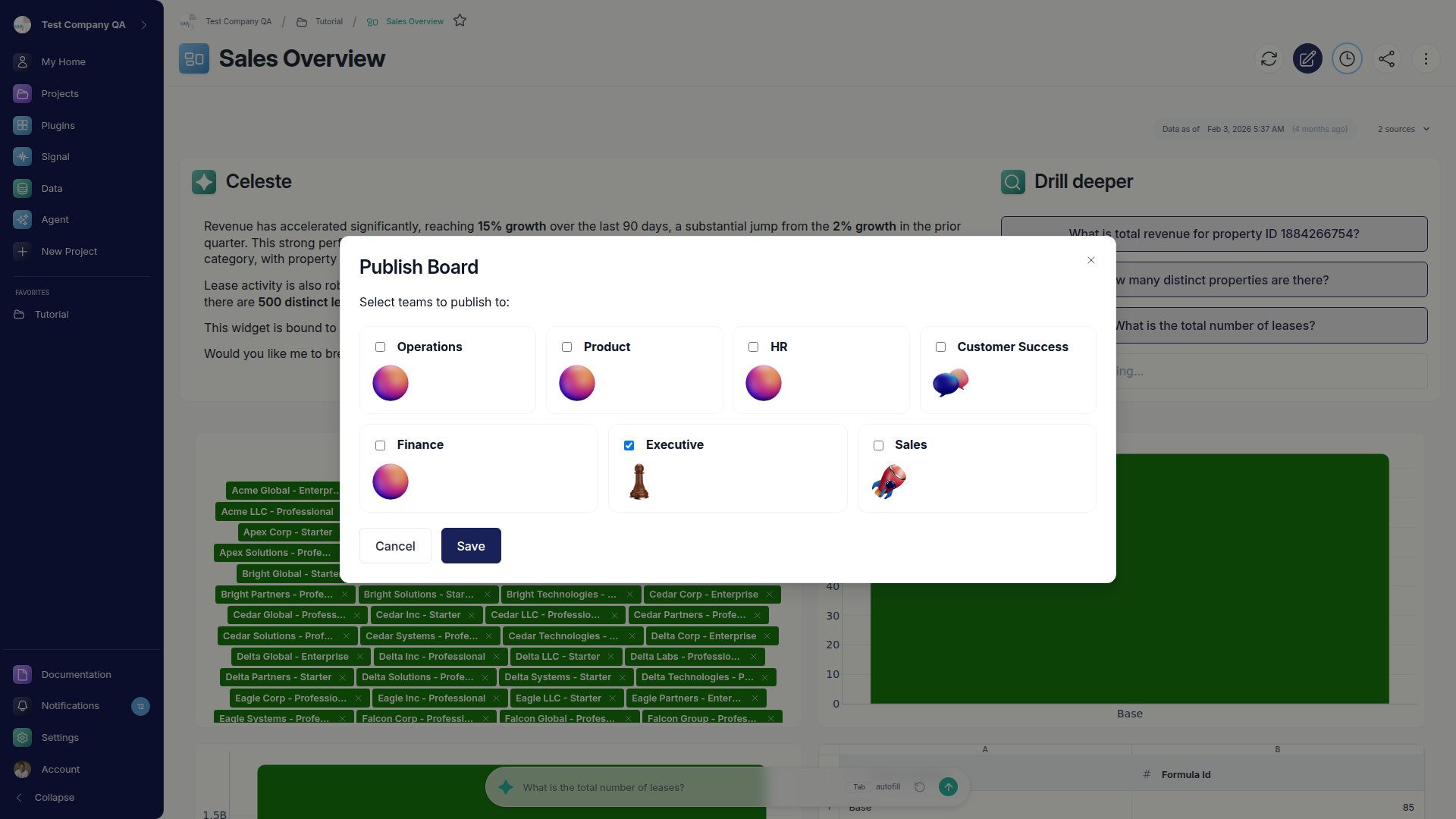
4
Pin Dashboard to Team homepage
Click on the pin icon at the top left of the dashboard thumbnail that you want to set as the default preview on the Team homepage.
Publishing a Flow
Publishing a flow follows the same process: open the flow, click Publish, and select one or more teams. Published flows appear on those teams’ pages as read-only.Managing Published Content
Editing Published Content
When you edit the source dashboard or flow, the published version updates automatically. No re-publishing needed.Unpublishing Content
To remove a dashboard or flow from Team Pages:1
Navigate to the published asset
Open the dashboard or flow on Team Pages or from your project.
2
Click Unpublish
Click ”•••” → “Unpublish from Team Page” or find the “Unpublish” button in the toolbar.
3
Confirm
Click “Confirm Unpublish”. Content immediately disappears from Team Pages for all team members.
Individual Shares vs. Publishing: Unpublishing content from Team Pages does NOT affect individual asset shares. If you’ve shared a dashboard directly with specific users, they will retain access even after unpublishing. To revoke individual shares, use the Share dialog on the asset.
Managing Shares vs. Publishing
These three actions are independent:- Unpublishing: Removes content from Team Pages (affects all team members)
- Revoking Individual Shares: Removes access for specific users you shared with directly (does not affect Team Pages)
- Archiving Projects: Hides the project from lists but keeps published content and individual shares active