

Overview
After building and running a flow, you’ll want to save the results for dashboards, reports, or further analysis. Go Fig provides multiple export options to fit your needs. What You Can Export To:- Virtual Tables: Save results as a saved query that creates a view from your source data, which dashboards and other Flows can then use
- Online Spreadsheets: Sync results directly to a Google Sheet or Excel Online file
- CSV Download: Download results to your computer for local analysis
- Charts: Create a chart directly in a Flow from its results using the Chart node
Understanding the Save Table Node
Every Flow needs at least one output node to keep its results. The most common is the Save Table node, the final step where you choose where and how to save data. Chart and AI Summary are also output nodes.Save Table Basics
What It Does:- Saves Flow results as a Virtual Table
- (Optional) Exports results to a connected online spreadsheet
- (Optional) Downloads results locally as a CSV
Virtual Tables
All flows will save results as a Virtual Table - a saved query that creates a view from your source database without creating new physical tables. Virtual Tables can be used in dashboards and other flows. Virtual Tables look and feel like other tables. They can be used in Dashboards and as inputs for other Flows.When your flow combines data from different sources (like joining BigQuery with Google Sheets), Go Fig stores a snapshot of the results for faster loading. This snapshot refreshes automatically when the underlying data changes, or you can manually refresh it anytime.
Export Results to Online Spreadsheets
Export flow results directly to Google Sheets or Excel Online.First-Time Setup
1
Share the spreadsheet with Go Fig
Navigate to the Google Sheet or Excel file that you want to export results to. Create a new tab if needed. Share write access to Go Fig by adding
[email protected] with Editor access.See the Online Spreadsheets connector guide for setup details.2
Configure Save Table to export to a spreadsheet
In the Save Table node, turn on the toggle to Export to Online Spreadsheets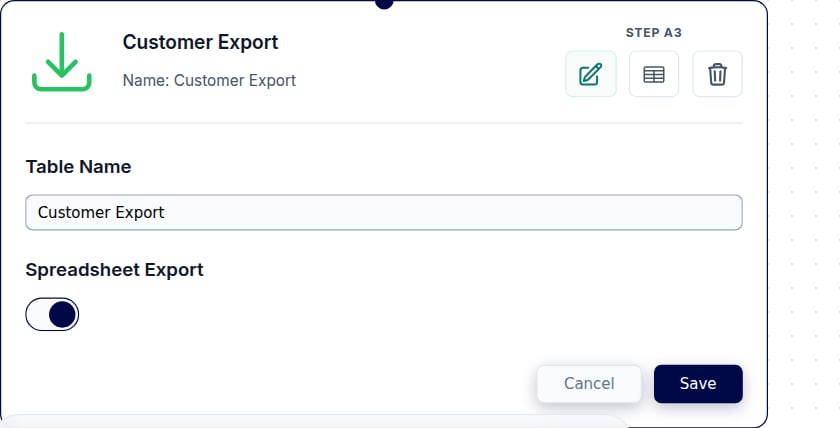
If your spreadsheet connection becomes invalid or is missing, Go Fig will automatically use another team member’s valid connection (if available) to ensure your flow continues exporting successfully.
3
Run and verify
Click Run to execute the flow. This will push the flow results to the selected Online Spreadsheet tab.Navigate to the Online Spreadsheet to verify the data was sent successfully.
CSV Downloads
1
Download as CSV
Click the download icon in the header of the node modal. This will begin download immediately.
Scheduling Automated Exports
Automatically run Flows and export results on a schedule (hourly, daily, weekly, monthly, or quarterly).Setting Up a Schedule
1
Open flow settings
In your flow, click Settings in the top toolbar.
2
Enable the schedule
Turn on the Schedule toggle and choose a frequency: hourly, daily, weekly, monthly, or quarterly.
Viewing Scheduled Run History
To see past scheduled runs:- Open Flow Settings
- Navigate to the Run History section
- View status, timestamp, and error logs for each run