App Layout
Go Fig is organized around a left sidebar for navigation and a main content area. Everything you build lives inside a project.The Left Sidebar
At the top, your organization name opens a switcher to move between organizations or create a new one. Below that are your main destinations: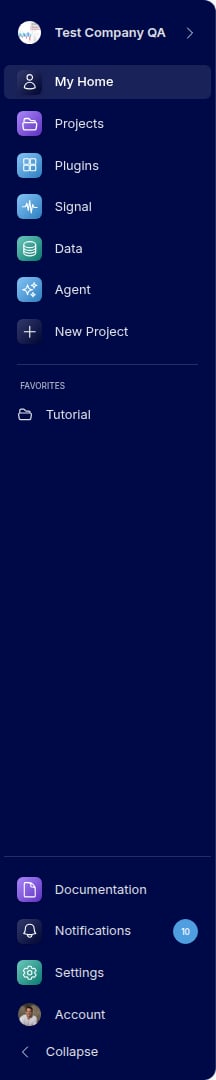
- Home - A summary of your day: what is waiting at a glance, where deals are waiting, Signal, and your recent projects
- Projects - Where your dashboards and Flows live, grouped by project
- Feed - Where you work your day: the AI approval queue, with section tabs and filters to narrow it
- Connectors - All connected data sources: connection status, sync history, and freshness. Add connections or trigger syncs here.
- Skills - Manage AI skills, configure automations, and track activity
- + New Project - Start a new project
- Plugins - Industry solution plug-ins
Settings
Click Settings at the bottom of the sidebar to open a dedicated settings area with its own sidebar: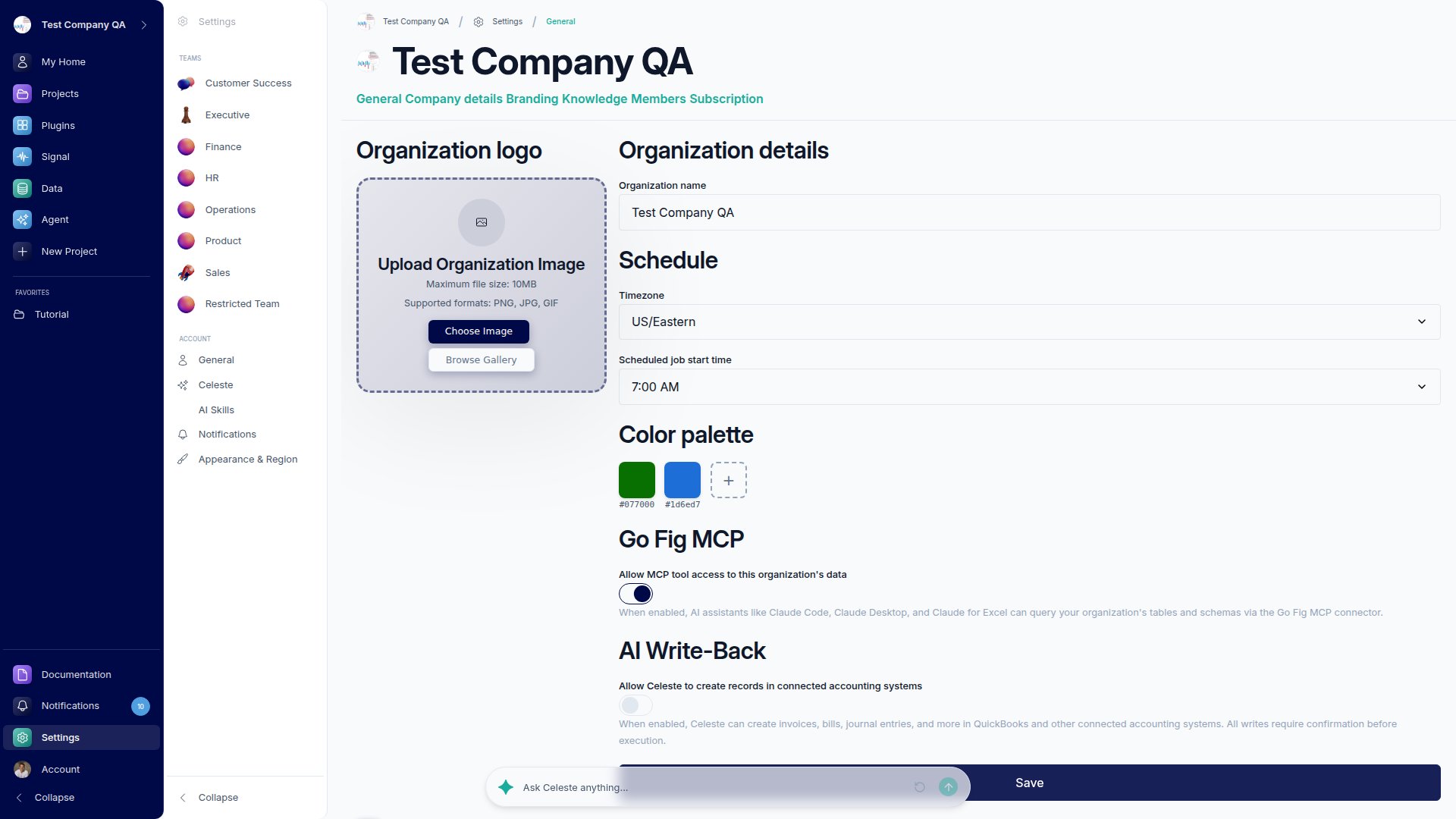
- Org (Admins) - General, Company details, Subscription, and Membership
- Teams - Settings for each team you belong to
- Account - General, Celeste, Notifications, and Appearance & Region
- Data (Admins and Data Stewards) - Access Roles and data access policies
Celeste AI Assistant
Click the Celeste icon at the bottom center of any screen to open the Celeste chat. Ask questions about your data, build dashboards and Flows, or get help, all in natural language. Learn more in the Celeste guide.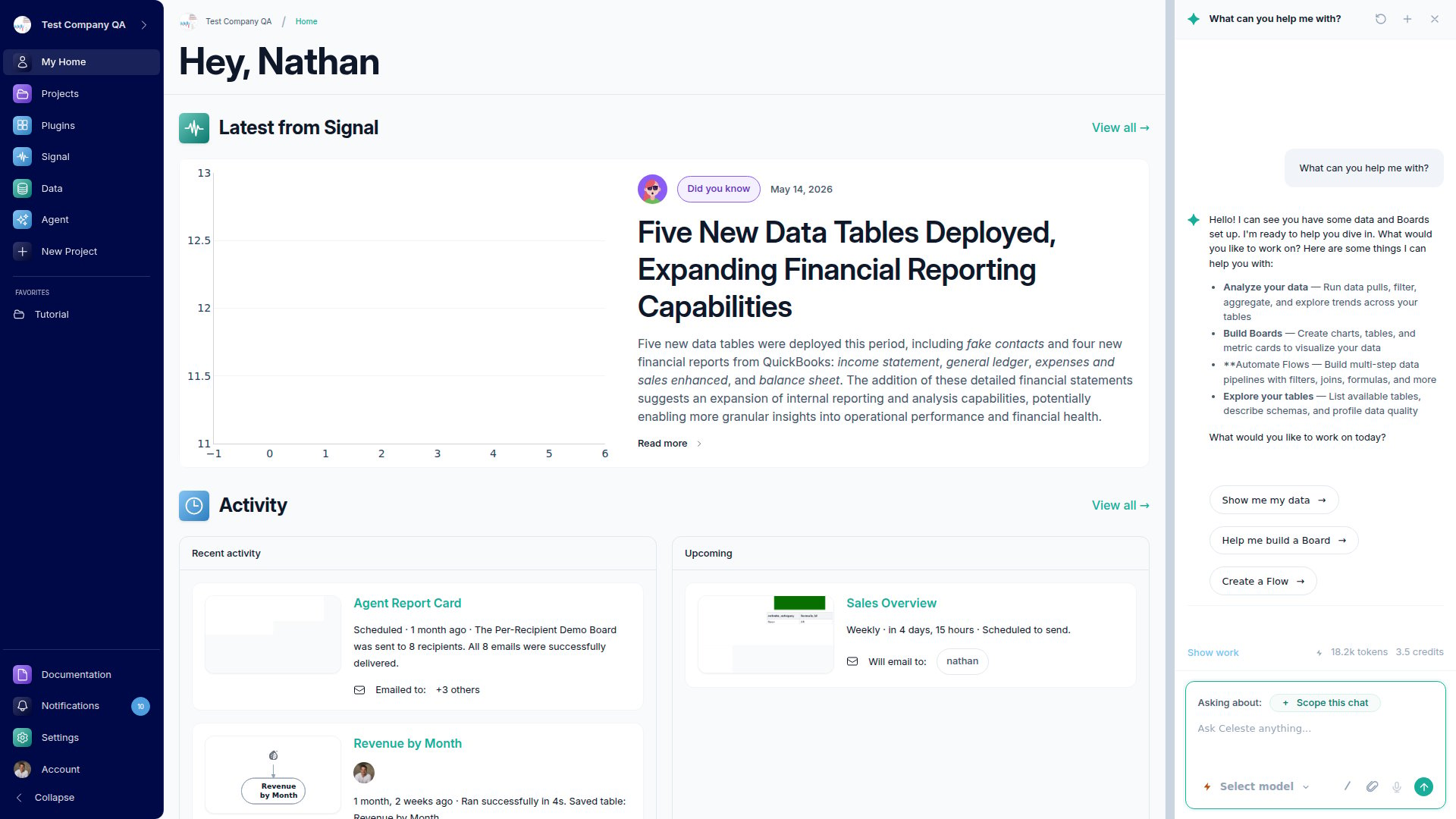
Common Navigation Paths
- Connect a data source: Connectors then Add data source
- Create a dashboard or Flow: Projects, open a project, then + Add Dashboard or + Add Flow
- Manage members: Settings then Org > Membership
- Check a connection’s status: Connectors then click any source for sync details
Sharing: Use the Share button in the top bar of any dashboard or Flow to share with specific people, publish to a team page, or export.