

Overview
Celeste is Go Fig’s AI analyst underneath the Sales Admin. She works only on a client’s governed data so every answer is grounded in their real numbers and carries a full audit trail. Ask in plain English. Celeste does not just explain how. She builds the result.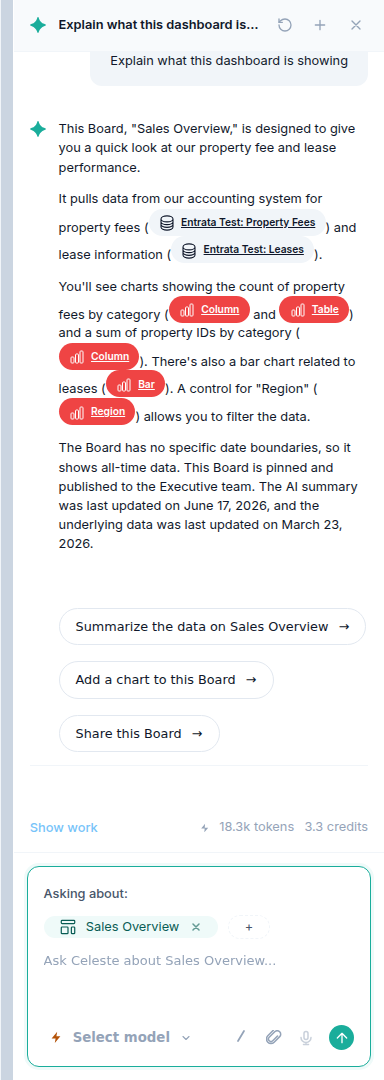
- Answer questions across all your connected data sources
- Build and modify Flows, including SQL and Python steps
- Generate charts and build dashboards
- Explain in plain language what a dashboard or Flow does
- Add interactive controls to dashboards (dropdown filters, date sliders, filter chips) that affect every chart at once
- Configure a dashboard’s recurring email report (recipients, cadence, attachments)
- List your dashboards and Flows, both owned and shared with you
- Remember your business rules and data definitions across every conversation, not just the current one
- Work directly in Slack: you can ask questions and trigger actions from the Go Fig Slack app without opening the browser
- Take action from chat: ask Celeste to create a contact or company, log a note or task, book a calendar event, or send an email. It proposes each action and asks for your confirmation before anything is written or sent
Getting Started
1
Open Celeste
Click the Celeste icon at the bottom center of any screen to open the chat. Make sure you have at least one connected data source (a database, connector, Virtual Table, or upload).
2
Ask your question
Type in natural language, for example:
- “What were our total sales last month?”
- “Show me top 10 customers by revenue”
- “How has revenue changed over time?”
3
Review results
Celeste returns an answer, a visualization when appropriate, a data preview, and the SQL it used so you can verify it.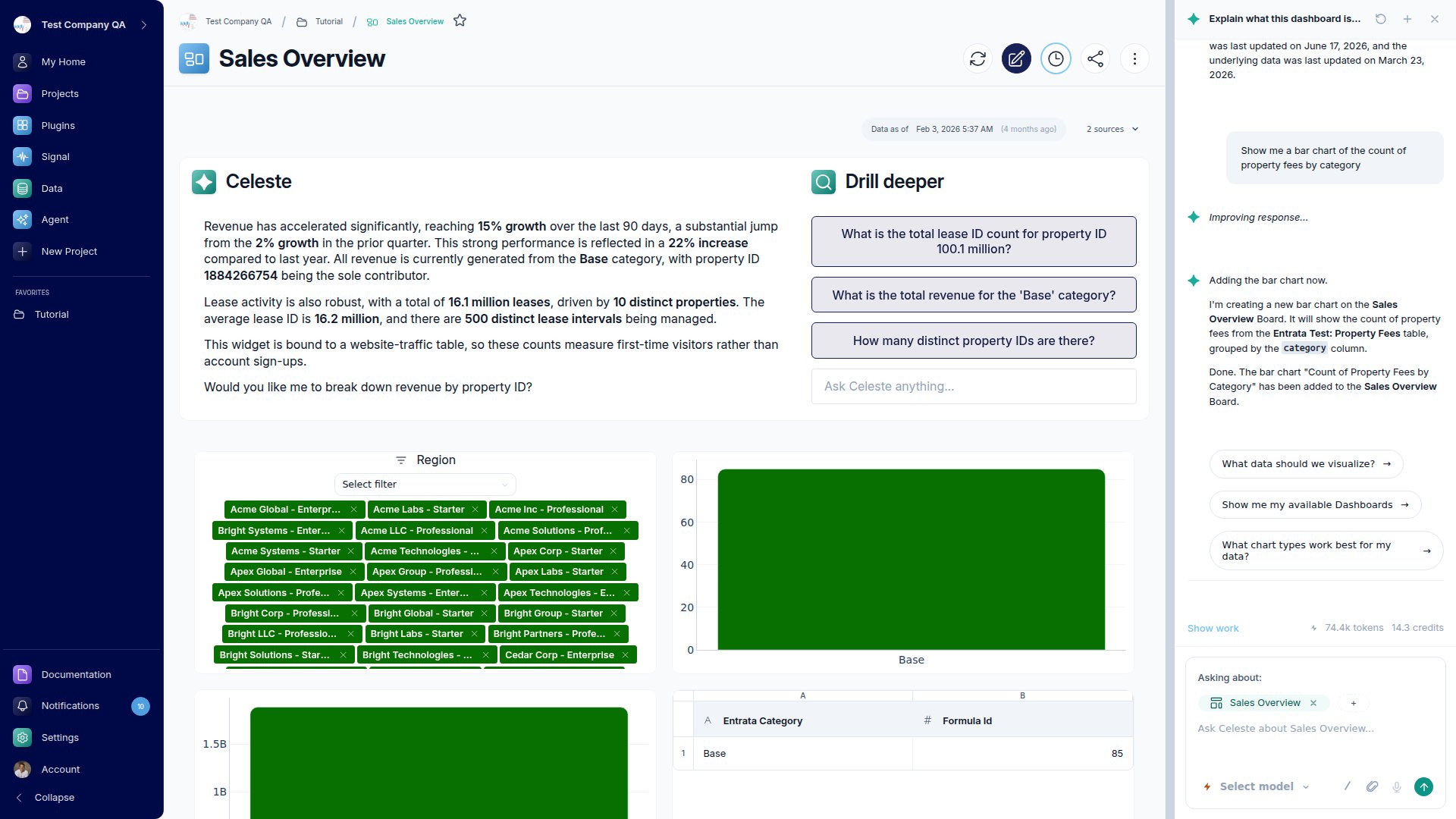
4
Refine
Ask a follow-up, or click one of the suggested follow-up questions. Celeste remembers the context of your conversation so you can build on previous answers.
Asking Good Questions
The clearest questions name what you want, which data, and an optional time period or filter. A few patterns that work well:- Metric over time: “What was total revenue in Q1 2024?”
- Breakdown: “Show me revenue by product category”
- Ranking: “Who are the top 10 customers by revenue?”
- Comparison: “Compare revenue this year vs last year by month”
- Filtered: “Show orders from New York over $1,000”
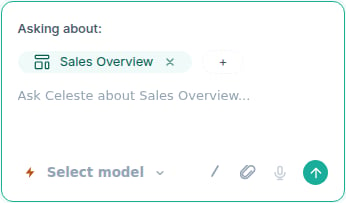
- Dashboards and scheduling: “Explain what this dashboard is showing”, “Add a region filter to this dashboard”, or “Schedule this dashboard to email my team every Monday”
Saving Results
Ask Celeste to save a result as a Virtual Table (for example, “save this as a table”). Once saved, you can reuse it in dashboard tiles, as a Get Data source in a Flow, or in shared reports.Teaching Celeste Your Business Rules
Celeste remembers your team’s data conventions so you do not have to re-explain them every time. What gets remembered:- Team-wide rules (saved by default): data definitions and calculation conventions, applied for everyone on your team
- Personal preferences: chart style or display preferences, saved for you only
Building Flows with Celeste
Beyond answering questions, Celeste can build full Flows: shaping data in a Transform step (group, aggregate, pivot, rank, running totals), writing SQL or Python, and adding an AI Summary. For complex, reusable analysis, having Celeste build a Flow is usually better than a one-off question.Celeste vs Flows
Use Celeste directly for quick, ad-hoc questions, exploration, and validating an idea. Have Celeste build a Flow when you need a reusable, multi-step process, scheduled refreshes, or logic that feeds production dashboards. A good habit is to explore with Celeste first then save the useful analysis as a Flow.Monitoring Agent Activity
A status dot in the app bar shows how your skills are doing at a glance: green means everything is running smoothly, amber means a skill stopped early, red means a run failed or you are out of AI credit, and gray means no skills are active for you. Hover the dot to see a plain-English summary of what is waiting in Feed and a direct link to the first card to handle. Click Skills in the left sidebar to see all the automated skills your organization has set up. Each skill shows its recent run history. Click any run to expand it and see the individual steps taken and where it stopped if something went wrong. From a skill’s detail page you can control how it runs for you. Use Pause for me to suspend your copy without affecting teammates, or Remove from my skills to fully opt out while teammates keep it. Admins can Pause for everyone (all runs stop, settings preserved) or Delete for everyone. For notify skills, a How it reaches you setting lets each rep choose whether the skill delivers by email. Proposed actions from your skills appear as cards in Feed. Open Feed from the left sidebar to approve, reject, or snooze each card. Use the search box above the filters to find a card by any word, name, email address, or number. If you handle something outside Go Fig — replying from your own inbox or adding a contact directly in your CRM — the card retires itself automatically with a short note explaining why, so your Feed stays current. To re-run a skill on a group that already has cards — for example, after updating the skill’s instructions — click Regenerate on the card group. Your approved or dismissed decisions are preserved; only the open cards are rewritten. When you ask Celeste for a write in chat, the same card appears in its reply so you can edit and approve it without leaving the conversation. It is one card in two places. Approving it in either is the same action, and it disappears from Feed once you decide it.Limitations
To disable agent write access for a specific CRM portal, go to Data → Connections and toggle Agent writes off on that portal’s card. Each connected portal has its own toggle so you can enable or disable writes independently.
If an approved action could not be delivered, it appears at the top of Feed marked Failed, and the filter rail’s Status filter narrows the queue to just those. Dismiss it to clear it. It won’t retry automatically. If the action still needs to happen, do it manually or ask Celeste again.
Data freshness: Celeste reads your data as of the most recent sync from your connected sources, not real-time.